Voltmasters Platform
Notifications
Choose per user of a Voltmasters EMS project who gets incident notifications by email or mobile push, and who gets the monthly report by email.
Under Settings → Notifications you choose per user of the project which incident notifications and which reports they get. The switches apply to this project only.
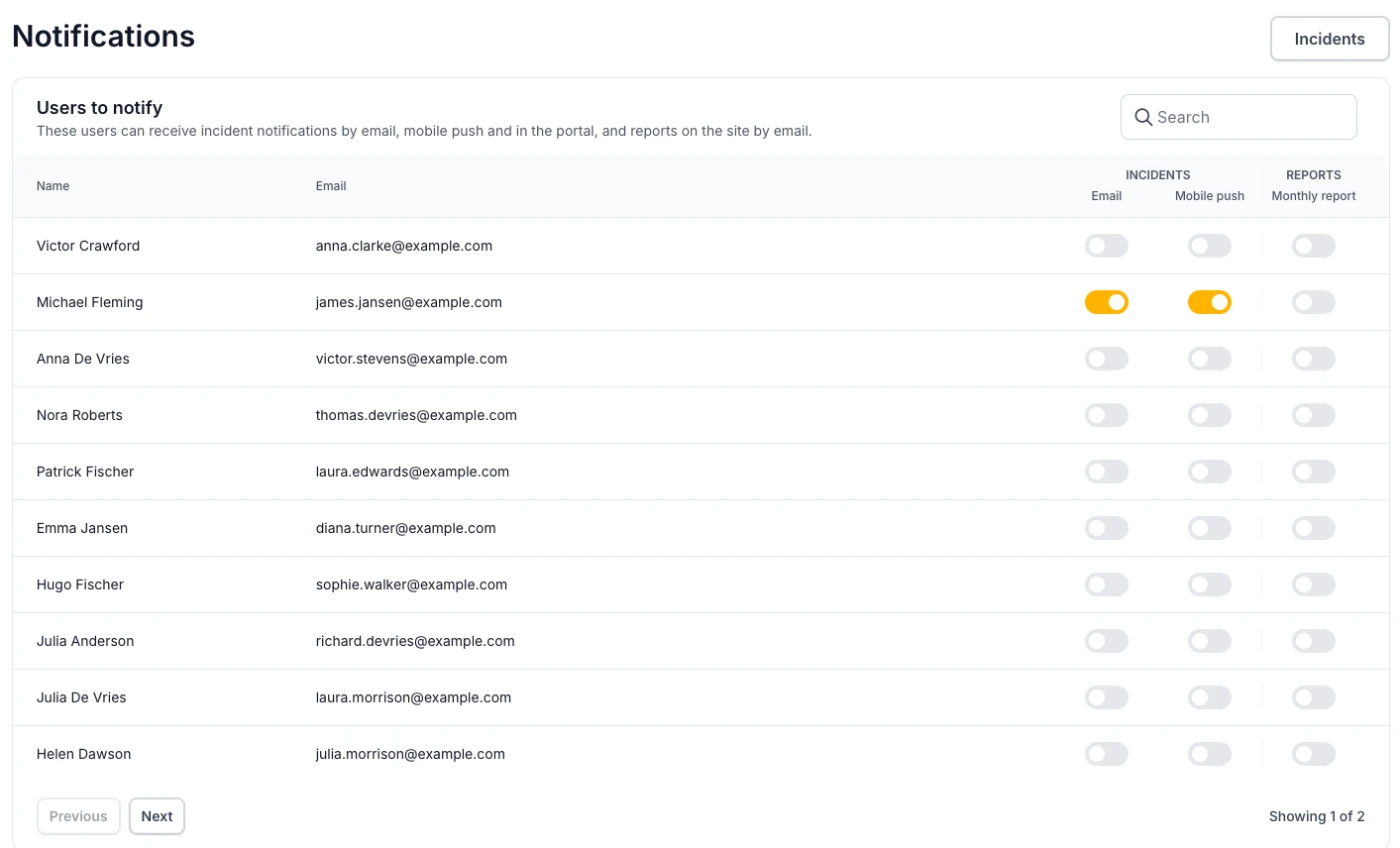
- Incidents: Email and Mobile push. See Incident notifications.
- Reports: Monthly report. See The monthly report.
A user with the Installer role manages the switches of everyone in the list. A user with the Customer role only sees their own row and changes their own notifications. See Users for the roles.
Incident notifications
Email and Mobile push are switched separately. A user with only Mobile push on gets the push notification but no email.
The switches only decide who gets a notification. Which incidents send one at all depends on the validation of the project, muting, the severity, the own rule of some incident types and the mail limit. That is explained under When an incident becomes a notification.
The monthly report
With Monthly report switched on, the user gets an email on the 2nd of every month at 07:00 (Belgian time) on how the project performed in the previous month. It comes on the 2nd rather than the 1st, so the meter readings of the last evening of the month are in. The mail is written in the language of the user's profile. The switch stays off until someone turns it on.
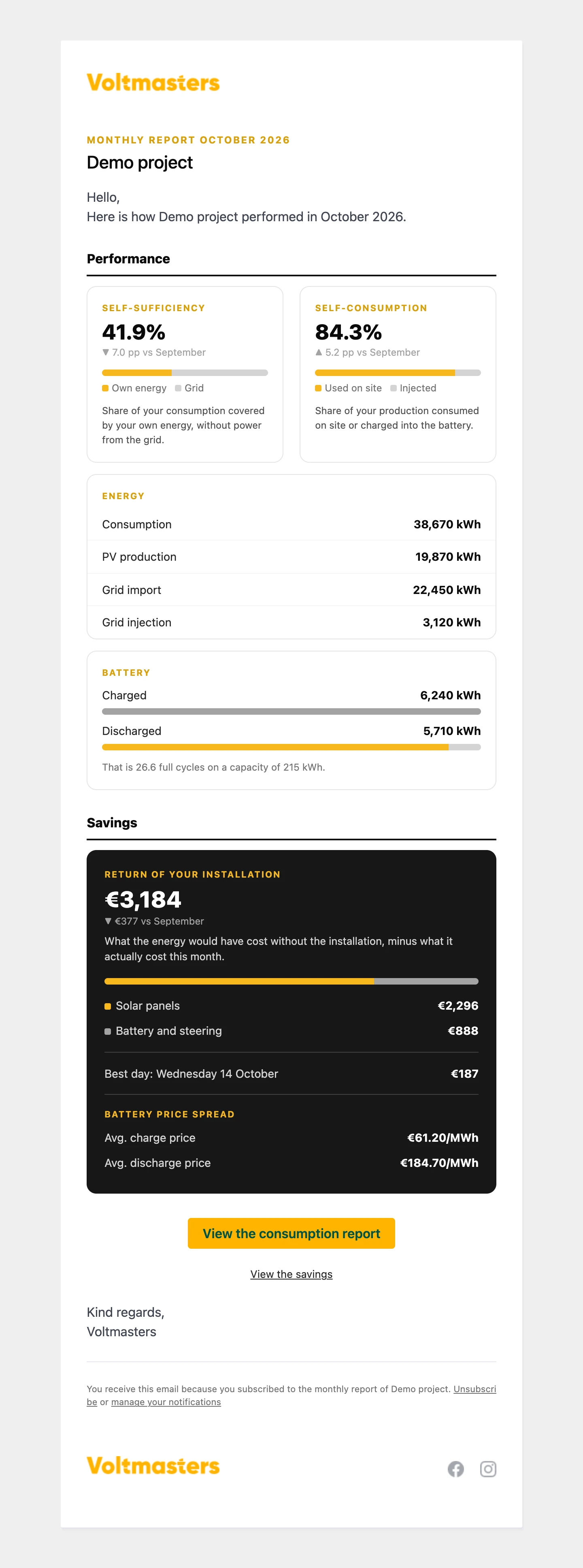
An example monthly report. The project and all figures are made up.
What the report contains
- Performance: the self-sufficiency (the share of the consumption covered by the site's own energy) and the self-consumption (the share of the production used on site or charged into the battery), each with the change in percentage points against the previous month.
- Energy: consumption, production and grid import and injection over the month. Only the rows the project has devices for are shown, so a site without wind turbines gets no wind row. Consumption and the grid figures need a grid meter.
- Battery: the charged and discharged energy, and how many full cycles that is on the configured capacity. Only for a project with a battery and an energy contract.
- Savings: the return of the installation, meaning what the energy would have cost without the installation minus what it actually cost, split into solar panels and battery and steering. Underneath are the change against the previous month, the best day and the average price at which the battery charged and discharged. These are the same amounts as on the savings dashboard. The block needs an energy contract with prices, and is left out when an integration partner steers the site through External control: the partner settles what that steering earns.
- Buttons to the consumption report and the savings of that month in the platform.
When the grid meter sent no readings for more than twelve hours in the month, the mail says so at the top. The figures may then differ from reality.
Unsubscribing
Every monthly report ends with an Unsubscribe link. It opens a page where one click stops the report of that project for that recipient, without logging in. The link manage your notifications next to it opens Settings → Notifications, where the report can be switched on again. A user who is removed from the project no longer gets the report.