Voltmasters Platform
Incident management
Track incidents on a Voltmasters EMS project: the incident list with its tabs and filters, muting, and which incidents send an email or push notification.
The incident list
Under Incidents you find the active and closed incidents of all your projects. Inside a project, the Incidents tab shows only the incidents of that project.
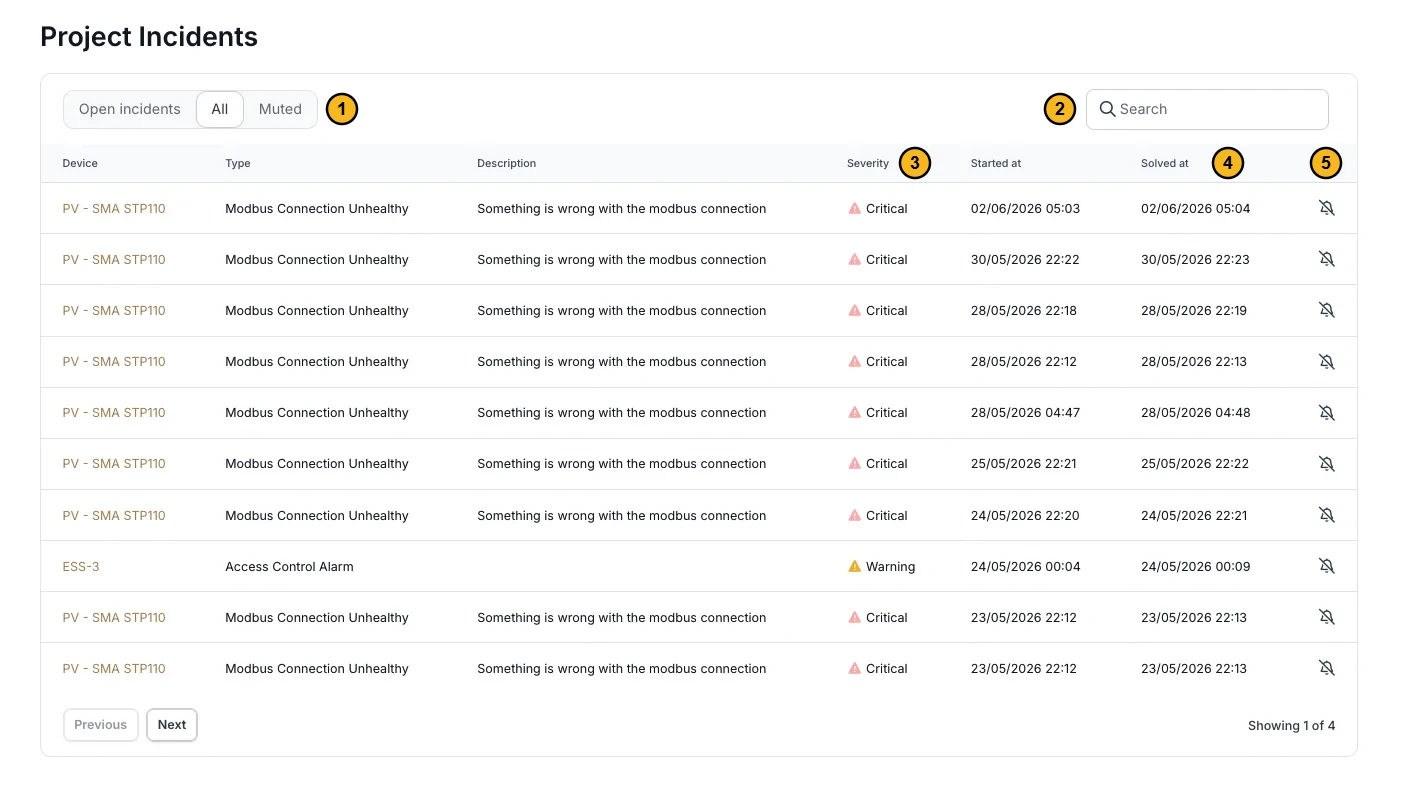
- The tabs: Open incidents (not yet resolved), All (open and closed, without the muted ones) and Muted (only the incidents of a muted type).
- Search the list.
- The severity: Info, Warning or Critical.
- The start and end of the incident.
- The bell: mute the incident type. See Muting an incident type.
Muting an incident type
Some alarms are correct but not useful on a given installation: a device that is knowingly offline, a limitation that is expected on this site, or hardware that is about to be replaced. Then you can mute the incident type.
Muting works per type, not per incident. Click the bell next to an incident and choose the scope:
| Scope | Effect |
|---|---|
| Mute for device | Only this device stops reporting this incident type. Other devices keep reporting it. |
| Mute for project | No device in the project reports this incident type any more. |
Choose the device scope by default. The project scope is for a type that is irrelevant to the whole installation.
- Incidents of a muted type are still recorded, in the Muted tab instead of the open list.
- Muted incidents send no email or push notifications.
- Muting is reversible at the same scope: unmute for the device, or for the project.
- The Muted by column shows who muted the type.
- A type can also be muted for a deleted device.
Muting hides a symptom, it does not fix a cause. Use it for a known and accepted situation, and review the Muted tab every so often: a mute that was meant to last a week easily lasts a year.
When an incident becomes a notification
Every incident is recorded and shown in the list. A notification, meaning an email and a push notification, is only sent in the cases below, and only to the people selected for it (see Who gets a notification).
flowchart TD
    I["New incident"] --> V{"Project validated?"}
    V -- "No" --> L["Only in the list"]
    V -- "Yes" --> D{"Type muted?"}
    D -- "Yes" --> G["Only in the Muted tab"]
    D -- "No" --> R{"Type with its own rule?"}
    R -- "Yes" --> RR["Notification once the condition is met"]
    R -- "No" --> K{"Severity Critical?"}
    K -- "No" --> L
    K -- "Yes" --> M["Push right away, email after 5 minutes"]
A project that is not yet validated sends no notifications: the first days after commissioning produce many unusual readings. After validation, notifications start by themselves.
Critical incidents
For a type without its own rule, the severity decides. Only Critical gives a notification:
| Channel | Timing |
|---|---|
| Push notification | Right away. It is withdrawn automatically once the incident is resolved. |
| Once the incident has been open for at least 5 minutes. Emails are bundled. | |
| Follow-up email | About 12 hours after the start, if the incident is still open then. |
Mail limit: a condition that keeps coming back is reported as a new incident every time, so emails are limited per condition. A condition is the combination of the project, the device and the incident type. It sends at most one email per day, and on at most two days per calendar week (Monday to Sunday, in the time zone of the project). The two days do not have to follow each other. Push notifications are not limited.
Types with their own rule
For these types the notification does not depend on the severity but on a condition of their own. They send one notification each time the condition is met, without the 5-minute wait and without a follow-up email. Muting applies to these types too. The names are the types as they appear in the list.
| Incident type | When the notification is sent |
|---|---|
| Grid consumption limit exceeded | Only when the quarter-hour average sets a new record for the month above the access power in the connection contract. A lower exceedance later in the same month costs nothing extra and stays silent. Every calendar month starts its own count. |
| Grid injection limit exceeded | The same, on the injection side. Periods in which the grid operator limited the site itself over telecontrol are excluded. |
| The controller is offline | After one hour without a sign of life from the controller. The incident itself already opens after thirty minutes. |
| Access control alarm | Immediately. The battery room or the cabinet has been opened. |
| Fire alarm, Fire alarm triggered and Fire alarm reported by the device | Immediately, at the highest priority, to every recipient of the project. It stays open until somebody resolves it by hand. |
| Modbus connection unhealthy | After sixty minutes without a single valid answer. Grouped per connection: when a gateway drops out, you get one notification naming the devices behind it. Stays silent as long as the controller itself is offline. |
| Grid connection meter is unreachable over Modbus | The same, for the meter at the connection point. |
| Lost communication with a charger behind the charging gateway | The same, for a charging station reached through a charging gateway. |
| The breaker tripped | Immediately, and every trip is its own notification. The recovery is reported as well. |
| PV not generating power when expected | After eight hours that carried a forecast in which the inverter stayed under a fifth of it. Those hours may run across several days. Hours in which production was deliberately curtailed do not count. Grouped per installation. An inverter that lost communication raises no production incident: the communication loss is reported as an incident of its own. |
Who gets a notification
Under Settings → Incident rules the users of the project are listed, each with a switch. On means that user receives the notifications of this project, off means they no longer do. The setting applies to this project only.
Frequently asked questions
Why did I not get a notification for an incident in my list?
Follow the diagram under When an incident becomes a notification. Usually it is one of these reasons:
- The project is not yet validated.
- The type is muted for the device or the project. Look in the Muted tab.
- The type has its own rule that was not met, for example a grid exceedance without a new monthly record, or a device that answered again within the hour.
- The mail limit was reached: the same condition (project, device and incident type) already sent an email today, or on two days this calendar week. The push notification still arrives.
- The severity is Info or Warning.
- You are switched off under Incident rules.