Getting started
Account registration and login
Create a Voltmasters platform account and log in, plus the two ways to set a new password depending on whether you can still get in.
Open the platform
Go to platform.voltmasters.be.
Start the registration
Click Sign up.
Enter your details
Enter your first name, last name, email address, and password, then confirm your password.
Create your account
Click Get started to create your account.
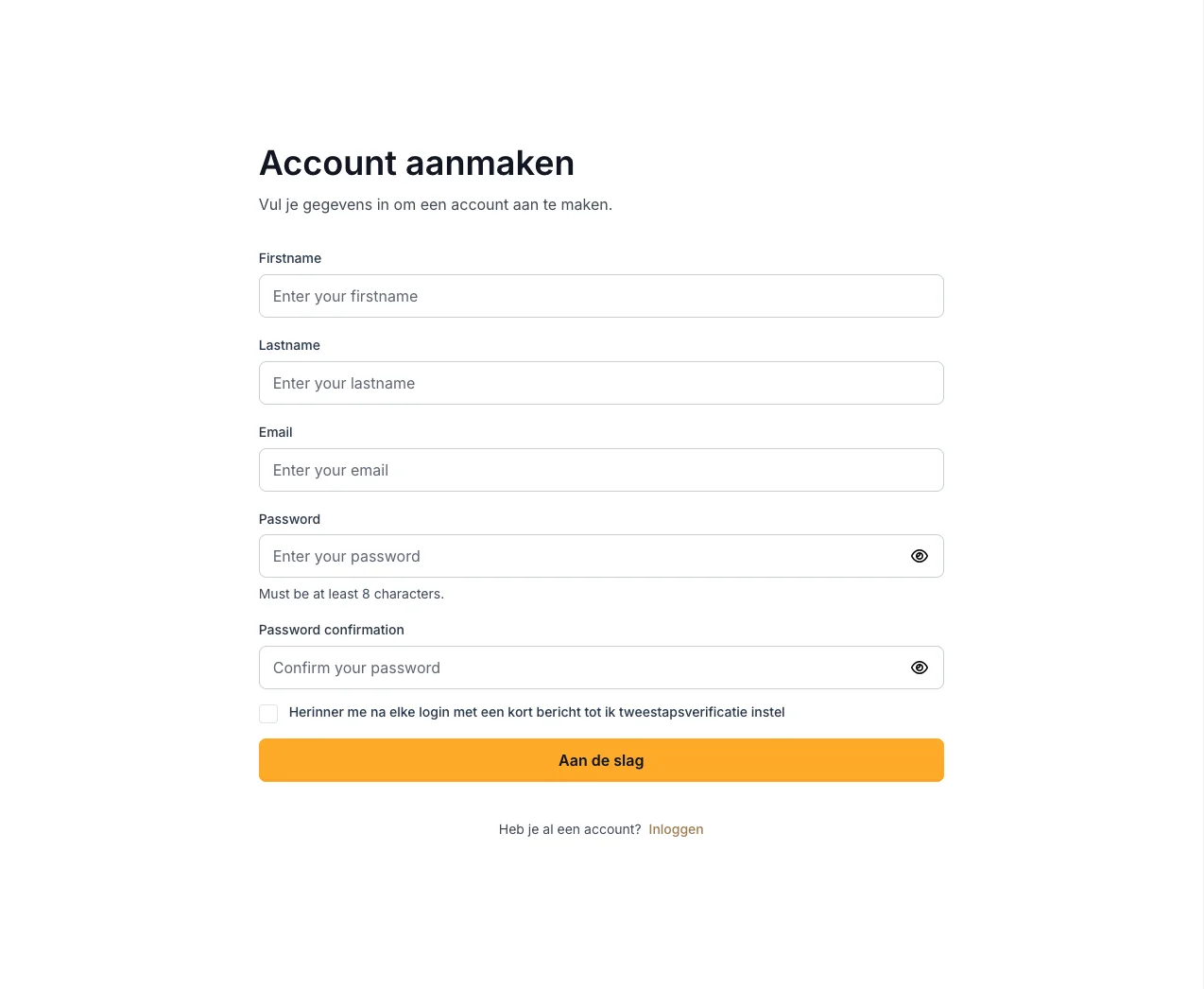
Your account is ready. How to log in afterwards, including with two-factor authentication, is explained in Logging in.
Changing or resetting your password
Forgot your password? (not logged in)
Open the login page
Click "Forgot password?"
Click the Forgot password? link below the password field.
Enter your email address
Enter the email address of your account and submit the form. You receive an email with a link to reset your password.
Choose a new password
Open the link in the email, enter your new password twice and confirm.
Did you not receive the email? Check your spam folder and make sure you used the email address your account was registered with. The reset link is only valid for a limited time; request a new one if it has expired.
Changing your password (logged in)
Open your profile
Click your name in the bottom-left corner of the navigation, or go directly to platform.voltmasters.be/profile.
Enter your new password
Under Personal information, enter your new password in the Password field and repeat it in Confirm password.
Save
Click Update. Your new password applies immediately.
The Password fields on your profile are only used to set a new password. Leave them empty when you change other details, such as your phone number, language or theme, and your current password stays unchanged.
Choosing the theme
On your profile, under Personal information, the Theme field sets how the platform looks for you: Light, Dark or Automatic. Automatic follows the light or dark setting of your device. Click Update to save your choice. As long as you have not chosen a theme, the platform stays light.
Two-factor authentication (2FA)
Your account can be protected with two-factor authentication. On top of your password, you then also enter a six-digit code from an authenticator app on your phone, so a leaked password alone is not enough to reach your installation.
We strongly recommend enabling 2FA for every user, and certainly for accounts with the Installer role: those accounts can change the configuration of an installation.
Enabling 2FA
Open your profile
Click your name at the bottom left of the navigation, or go directly to platform.voltmasters.be/profile.
Start the setup
Go to the Two-factor authentication section and turn it on. The platform shows a QR code.
Scan the code with an authenticator app
Scan the QR code with an authenticator app such as Google Authenticator, Microsoft Authenticator, 1Password or Bitwarden. The app then generates a new six-digit code every 30 seconds.
Confirm
Enter the code the app shows to confirm the link. From then on, you enter a code from the app after your password on every login.
Once 2FA is on, your profile shows the status Enabled under Two-factor authentication. Use Manage to change the setting later.
Make sure you keep access to your authenticator app, and set it up on a device you actually keep. If you lose access to the app, you cannot log in yourself: access then has to be restored by Voltmasters Support.