Voltmasters Platform
External control
Handing control of the battery and the PV inverters to an external energy partner, and what the platform does once that partner is connected.
Under Configuration → Grid & market → External control, you hand control of the installation to an external energy partner. The partner sends charge and discharge commands to the EMS controller based on live market conditions; for the partners that support it, the PV inverters are steered in the same way.
This is what is often called imbalance trading. The platform uses the broader term external control, because the same mechanism also carries flexibility activation and supplier-side market optimization. See External signal: overview for how external steering works in general.
Supported providers
The dropdown lists the providers the platform can connect to. The name in the dropdown is not always the partner's commercial name, so both are given here:
| In the dropdown | Partner | Steers | Detail page |
|---|---|---|---|
| BEE | BEE (via Companion) | Batteries, PV | BEE |
| Centrica | Centrica Energy | Batteries (FCR) | Centrica |
| Elion | Elion / Elindus | Batteries, PV | Elion |
| Engie | Engie (via Companion) | Batteries, PV | Engie |
| Gridual | Gridual | Batteries, PV | Gridual |
| Trevi | Trevion | Batteries, PV | Trevion |
| Yuso | Yuso | Batteries, PV | Yuso |
Each detail page describes the connection method (MQTT with certificates, or a REST API with an API key) and the credentials that partner requires.
What to fill in per provider
Selecting a provider decides which fields the form shows. Nothing else is asked, so a short form is not a sign that something is missing:
| Provider | Fields |
|---|---|
| BEE | API key, Customer ID, and optionally a PV asset ID per non-steerable PV inverter |
| Engie | API key, Customer ID, and optionally a PV asset ID per non-steerable PV inverter |
| Trevi | Site ID, Certificate (pem), Private key |
| Yuso | Per connection a Thing name and a Client ID (battery and PV separately), plus Certificate, Private key and Root key |
| Gridual | Host, Port, Certificate, Private key, Root key |
| Centrica | Certificate, Private key. The postal code and the grid connection references are read from the project settings, not entered here |
| Elion | Nothing. Selecting Elion is enough; the connection is set up automatically |
Certificates are uploaded as files. The accepted extensions depend on the provider: .crt for the certificate, or .crt and .pem for Trevi, Gridual and Centrica; .key for the private key, or .key and .pem for Gridual and Centrica.
With Yuso, the battery and the PV inverters run over separate connections, so both can be steered at the same time and independently of each other. Fill in at least one of the two, and fill it in completely: a connection with only a thing name or only a client ID is refused.
PV asset IDs (BEE and Engie)
BEE and Engie both run on the Companion platform, where every asset the platform trades with has an asset ID. A PV inverter the EMS steers registers itself with Companion through the controller, so it needs nothing here. An inverter that is not set to controllable cannot register itself, and the platform has no way to know which Companion asset it is. For those inverters, the service provider gives you an asset ID, and the form lets you enter it.
- The form lists every PV inverter of the project that is not controllable, by name and marked (optional). Fill in the ones the provider gave you an ID for and leave the rest empty.
- A project without non-steerable PV inverters gets a line saying there is nothing to fill in here. That is not something missing; there is simply nothing to map.
- Controllable PV inverters never show up in the list. An asset ID for a device that is not a non-steerable PV inverter of this project is refused.
- The mapping belongs to the external control configuration, not to the device. It is sent to the EMS controller as part of the provider configuration, together with the API key and the customer ID.
Settings the provider depends on
Two providers need project settings that are entered elsewhere, and the form says so with a link to the right page instead of letting you save something that cannot work:
- Elion needs the meter point identifiers (EAN codes) of the project, either one shared identifier or separate ones for consumption and injection. They sit in the grid connection references section under Configuration → Grid & market → Grid settings.
- Centrica needs the grid connection references on that same page, plus the project's postal code under Settings → General.
Connecting a provider
The configuration screen
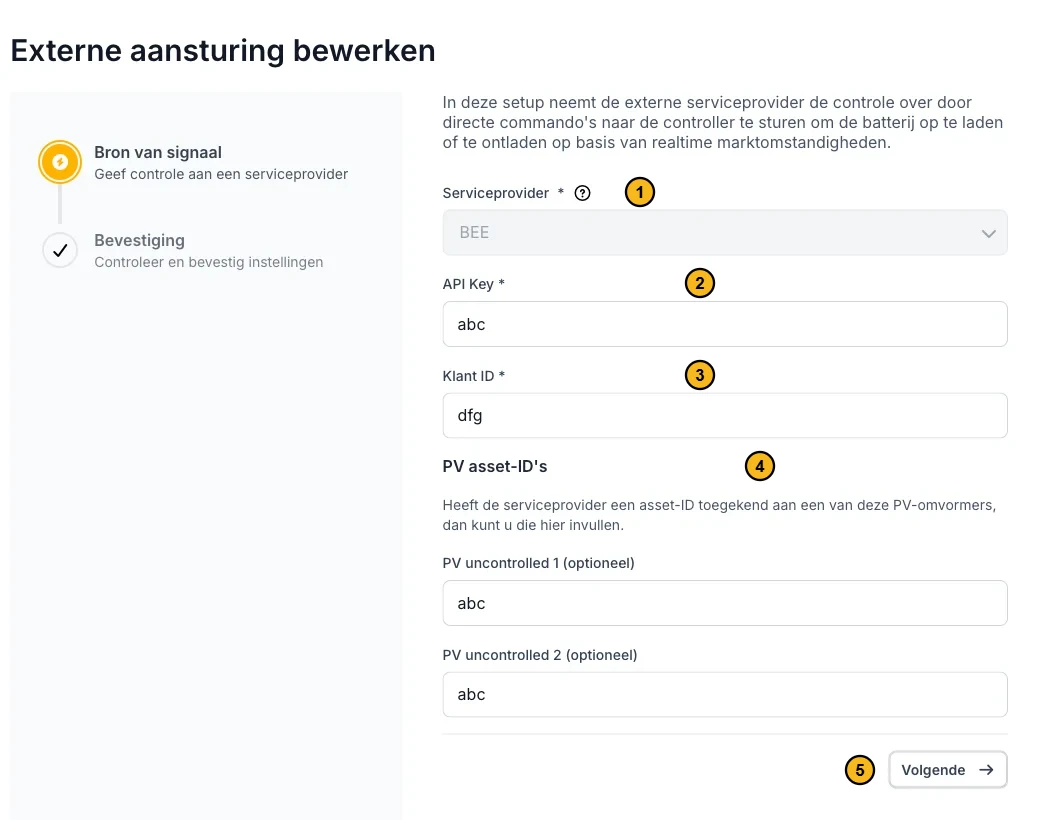
The edit screen of a BEE project. The fields are prefilled and the service provider is locked. The screenshot is in Dutch.
- Service provider: locked when editing.
- API Key (the field name depends on the provider).
- Klant ID (customer ID).
- PV asset IDs: optional, one per non-steerable PV inverter.
- Next: to the confirmation.
Open the configuration
Navigate to Configuration → Grid & market → External control. On a project without a provider, the page explains the procedure and offers Configure external control.
Source of signal
Select the service provider, then fill in the fields that appear for it and upload the certificate files it needs. Next stays unavailable until everything the provider requires is filled in. The PV asset IDs of BEE and Engie are optional, so they never hold up this step.
Confirmation
The second step lists back everything you entered, with the uploaded files by name. Check it and press Save.
From then on, the trading party can send signals to the EMS controller instructing it to charge or discharge the battery based on market conditions.
Once a provider is connected
The page turns into an overview of the connection:
| Element | What it does |
|---|---|
| Status | Switches external control on or off. Switched off, the credentials stay stored but the controller runs the project's own strategy again. |
| Method and Service provider | The connection currently in use. |
| PV asset IDs | Only for BEE and Engie, and only when something is mapped: the non-steerable PV inverters with the asset ID entered for them. |
| Edit configuration | Opens the configuration again to change the credentials and the asset IDs, without disconnecting. |
| Disconnect | Removes the connection and the stored credentials, so the project runs entirely on its own strategy again. |
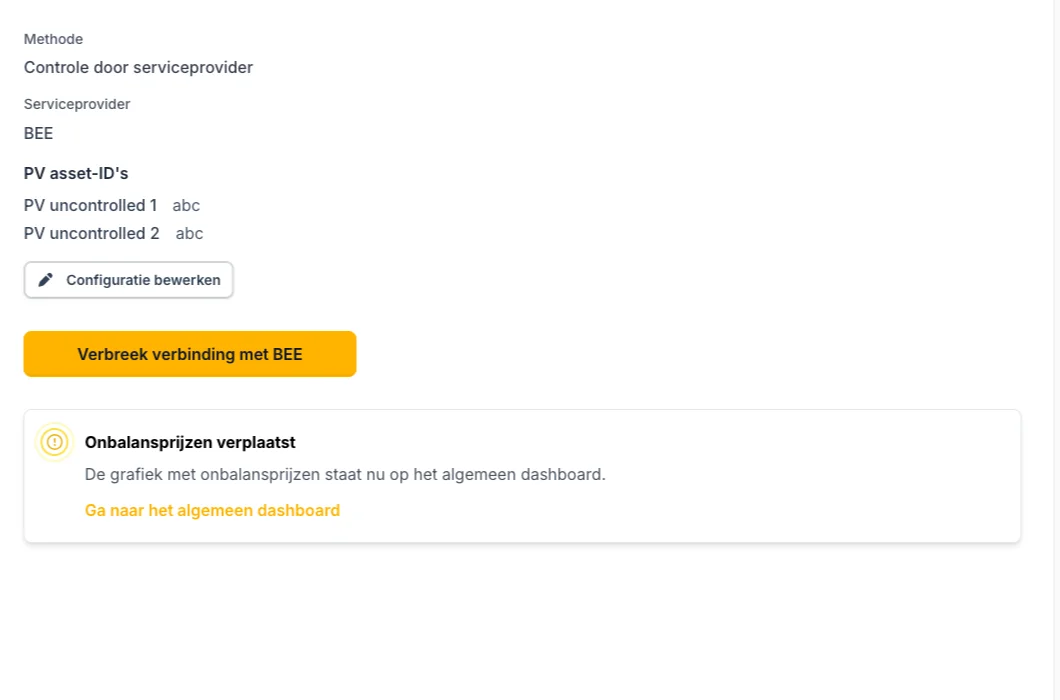
A project on BEE with two mapped PV inverters. Edit configuration reopens the settings; Disconnect removes them.
While external control is enabled, the partner's orders take priority over the project's own strategy. The EMS keeps enforcing the project's limits and safety constraints, whatever the partner asks.
Changing a connected configuration
A mistyped asset ID, an API key the provider rotated, a certificate about to expire: none of that needs a disconnect and a fresh setup. Edit configuration on the detail page reopens the same two-step wizard, prefilled with what is stored.
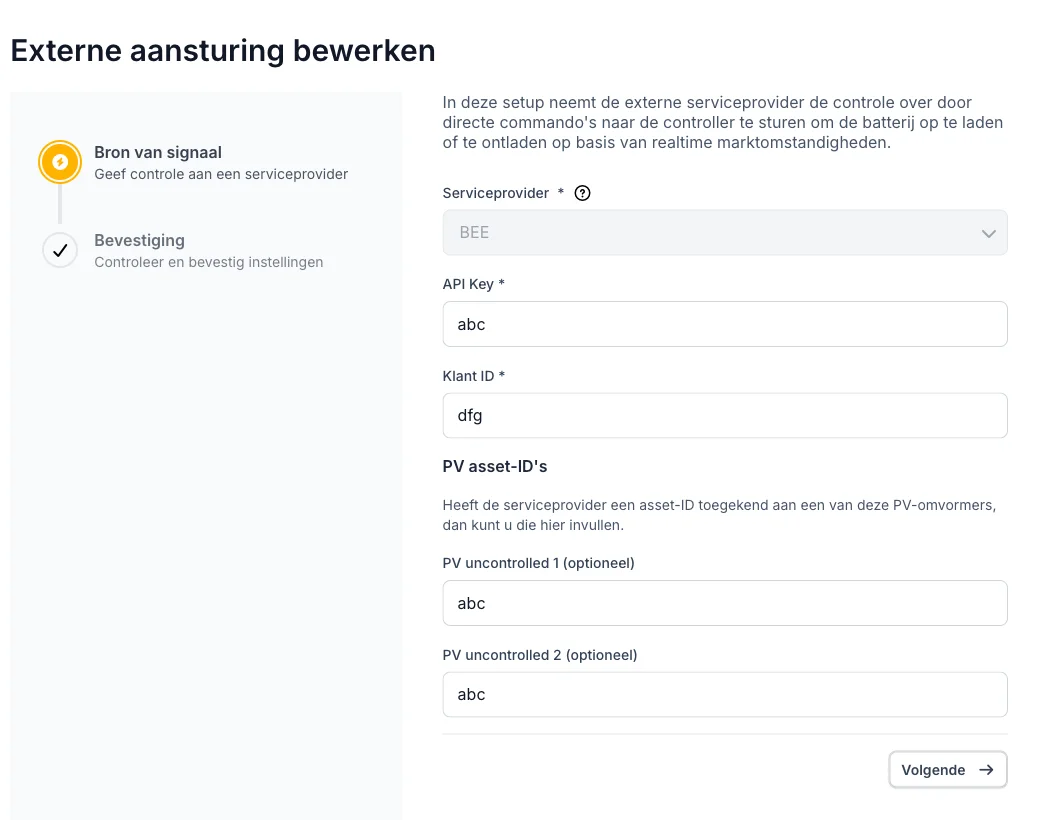
The edit wizard on a BEE project. The credentials and the asset IDs are prefilled, and the service provider is locked.
What differs from the first setup:
- The service provider cannot be changed here. Moving to another partner still means disconnecting and configuring the new one, because the credentials of the old partner have to go.
- Text fields, the API key included, show their current value and can be overwritten.
- Elion has no fields to change, so a project on Elion has no Edit configuration button.
Replacing a certificate or a key
A stored file stays as it is unless you deliberately replace it. Replace file turns that one field back into an upload zone; the other files keep their button and are left alone.
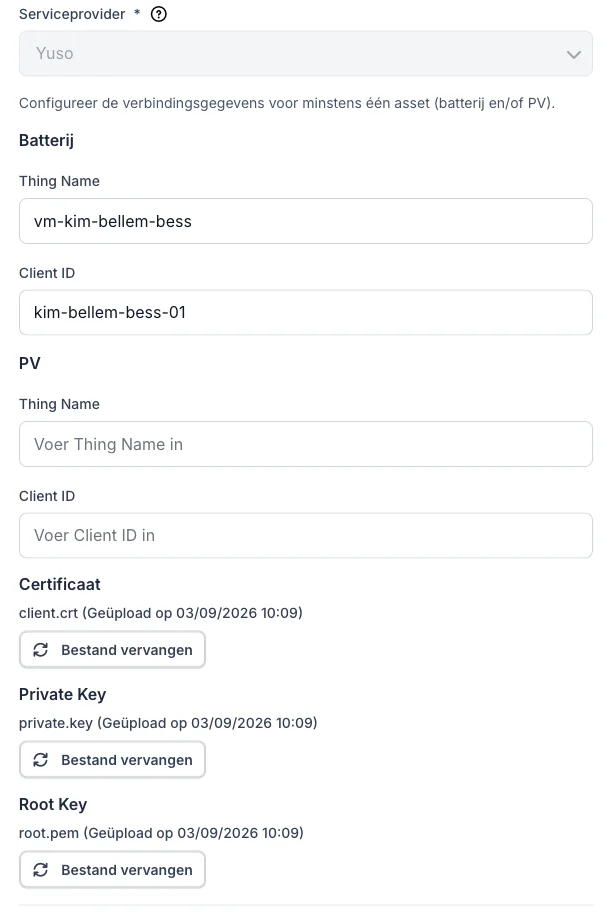
Yuso with three stored files. Each one shows its name and the date it was uploaded.
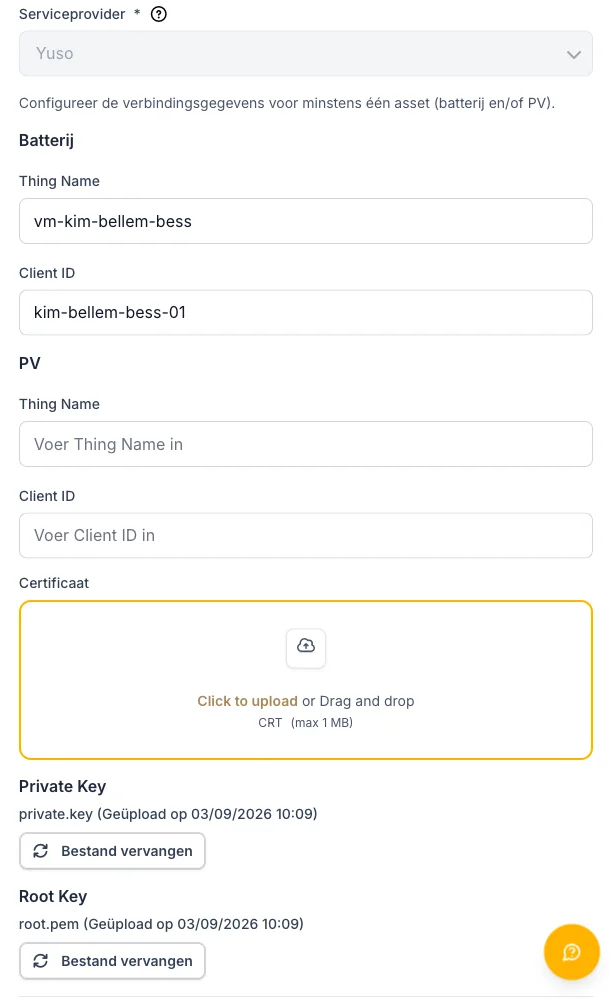
After Replace file on the certificate, only that field asks for a new upload.
Upload a new file and it takes the place of the stored one. Leave a field alone and the confirmation step reports Current file kept for it. The requirement that a provider needs its certificate only applies while nothing is stored yet, so an edit that only changes an asset ID can be saved without touching the files.
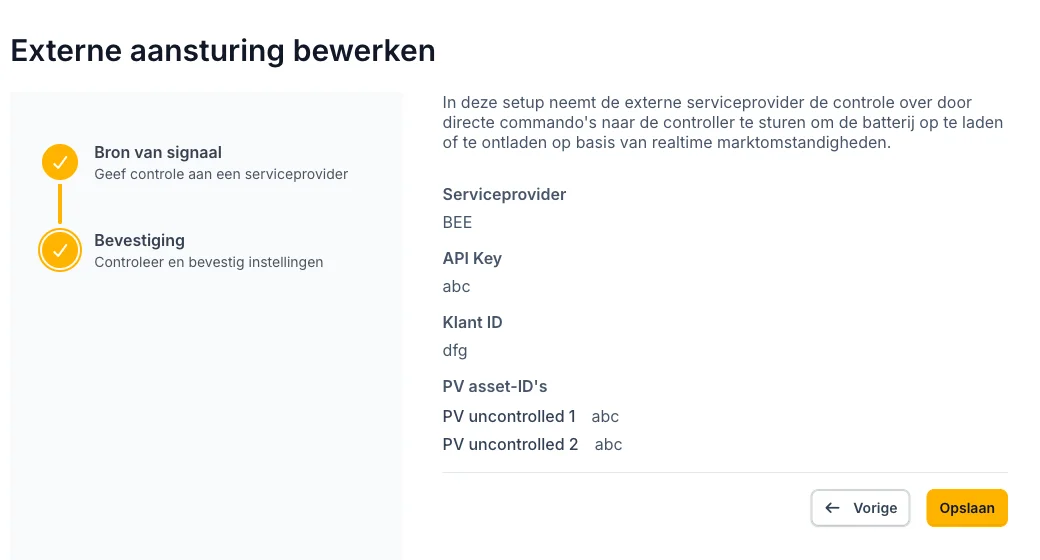
The confirmation step lists back what will be saved, with the mapped inverters by name.
After Save, the EMS controller fetches its configuration again straight away, so the new credentials and asset IDs are in use. The change is recorded in the activity log, where the PV asset IDs appear per device by name.
Editing is available to the same people who may configure external control in the first place: the installer of the project.
Which devices participate
All controllable batteries and PV inverters of the project participate; there is no per-device selection. A device that is not set to controllable is not steered, by the partner or by the EMS itself.
Non-steerable PV inverters are the one exception to that, and only on BEE and Engie: they are still not steered, but an asset ID entered for them tells the provider which Companion asset the inverter is. See PV asset IDs.
Where to see it working
- Analysis → Advanced → Trading shows the setpoints and the control signals, but only while external control is active. See Imbalance trading dashboard.
- Monitoring → Overview carries the imbalance prices chart.
Certificates
Certificates are technical connection files, usually a client certificate and its private key. They identify your EMS controller to the trading platform. They have nothing to do with green power certificates or Guarantees of Origin.
Your certificates come from the energy supplier or trading party you deliver the service for. If you have not received them, contact that party or Voltmasters Support.