Skip to content

Users

Manage who has access to a Voltmasters EMS project, and what the Client and Installer roles are each allowed to do.

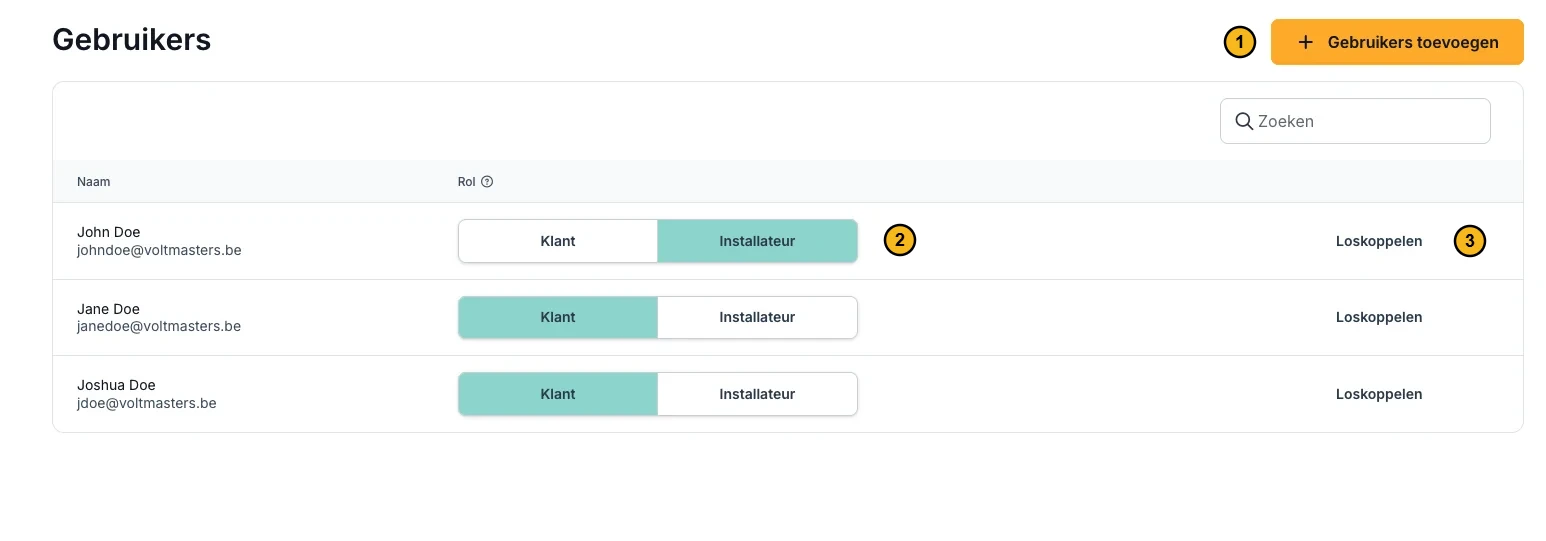
Under Settings → Users, you can view and manage all users who have access to the current project. Each user in the list shows their name, email address and assigned role.

User roles

Every user on a project is assigned one of two roles: Client or Installer. The role determines which actions and settings that user can access within the project.

Client

The Client role is designed for the site owner or end user of the installation. Users with this role can view the key dashboards and data relevant to their project.

Clients can typically:

  • View the EMS dashboard, battery dashboard, PV dashboard, consumption dashboard and energy meter data.
  • Monitor live energy flows and historical performance.
  • View active incidents and alerts.

Clients cannot change configuration settings or add new devices.

Installer

The Installer role is intended for the technical manager who configures and maintains the EMS and connected equipment on behalf of the customer. Users with this role have full access to all technical settings and configuration options on the project.

Installers can:

  • Open and modify every project settings page: Settings → General, Users, Incident rules and API keys, and under Configuration the EMS controller, strategy, grid and market settings and consumption planning.
  • Use the Devices menu to view the device list, add new devices and open configuration, communication and (where applicable) load management or manual override options for each device.
  • Modify grid settings and strategy settings, and configure and monitor imbalance trading where applicable for the project.
  • Invite users to the project, manage their roles and disconnect users from the project where the screen permits it.
  • Access the subscription or billing screen for the project where permitted (for example to activate a plan or view invoice details).

Adding a user

  1. Navigate to Settings → Users.
  2. Click Add users in the top-right corner.
  3. Enter the email address of the person you want to invite.
  4. Select a role: Installer or Client.
  5. Click Send Invites.

The invited person receives an email with an activation link. After clicking the link, they can set a password and access the Voltmasters EMS platform and this project.

Removing a user

To disconnect a user from a project:

  1. Navigate to Settings → Users.
  2. Find the user you want to remove.
  3. Click Disconnect next to their name.

The user will no longer have access to this specific project. Their account remains active on the platform and they retain access to any other projects they are linked to.

Voltmasters EMS: user management

Voltmasters EMS: user management