Getting started
Local interface
Open the local interface of the EMS controller on site from a laptop: where to find the controller login in the platform, the address to browse to, and how to change the controller's network on site.
Every EMS controller has a local interface: a web page that runs on the controller itself. On site you open it from a laptop on the same network as the controller, without going through the platform. You see what the controller sees, live, and you can set the controller's own network there.
Use it for example when you install or replace devices and want to follow them on the spot, or when the site network changes and the controller can no longer reach the platform.
The local interface needs controller version 0.0.339 or newer.
The controller login
The local interface asks for a username and a password. Every controller has its own login. You find it in the platform under Configuration → EMS controller → Network configuration, in the Controller login block. Show password shows the password, and you can copy both with one click.

The login is visible to the project admins, to the partner of the project and to Voltmasters administrators.
A controller receives its login the first time it reaches the platform. A new controller that has never been online has no login yet, so its local interface cannot be opened yet.
Opening the local interface
Connect the laptop to the site network
Connect the laptop to the same local network as the controller, for example to the same switch.
Look up the address of the controller
In the platform, the Network configuration tab shows under every interface the address the controller uses right now, for example
192.168.1.50/24. You can also find the controller in the list of connected devices of the site's router.Browse to the controller on port 3000
Open
http://<address of the controller>:3000in the browser, for examplehttp://192.168.1.50:3000.Log in
Enter the username and password of the controller login.
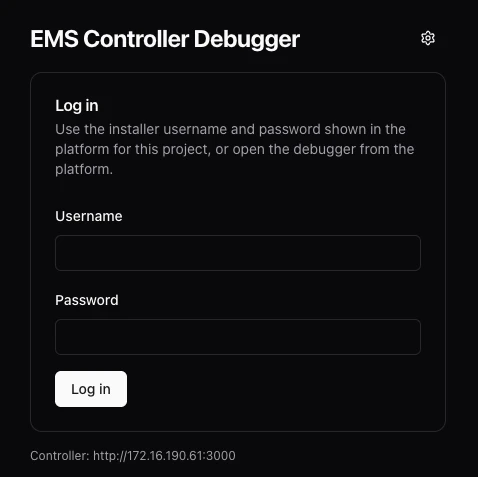
Do not forget :3000. Without it, the browser opens the web page of the controller hardware itself, which can show a certificate warning. That page is not the Voltmasters interface.
After too many wrong attempts, the login is blocked for a short time. The login screen says when you can try again.
Without an address on the site network
When the controller has no working address on the site network yet, for example because the network changed, connect the laptop directly to a USB port of the controller.
Plug in a USB network adapter
Plug a USB ethernet adapter into a free USB port of the controller and connect the laptop to it with a network cable.
Give the laptop a fixed address
Set the network adapter of the laptop to the fixed address
172.31.254.101with subnet mask255.255.255.252(/30). A gateway and DNS servers are not needed.Open the local interface
Browse to
http://172.31.254.102:3000and log in with the controller login.
On a site with a Fluvius RTU on one USB port, do not use the other USB port this way. Both ports would carry the same address, which can disturb the link with the RTU.
This works as long as the USB port keeps its default setting. A USB port set to DHCP or to another address in the network configuration does not answer on 172.31.254.102.
What you see
The local interface is the same view Voltmasters support works with. You follow the live values of the connected devices, the decisions of the controller and its logs, also when the controller cannot reach the platform.
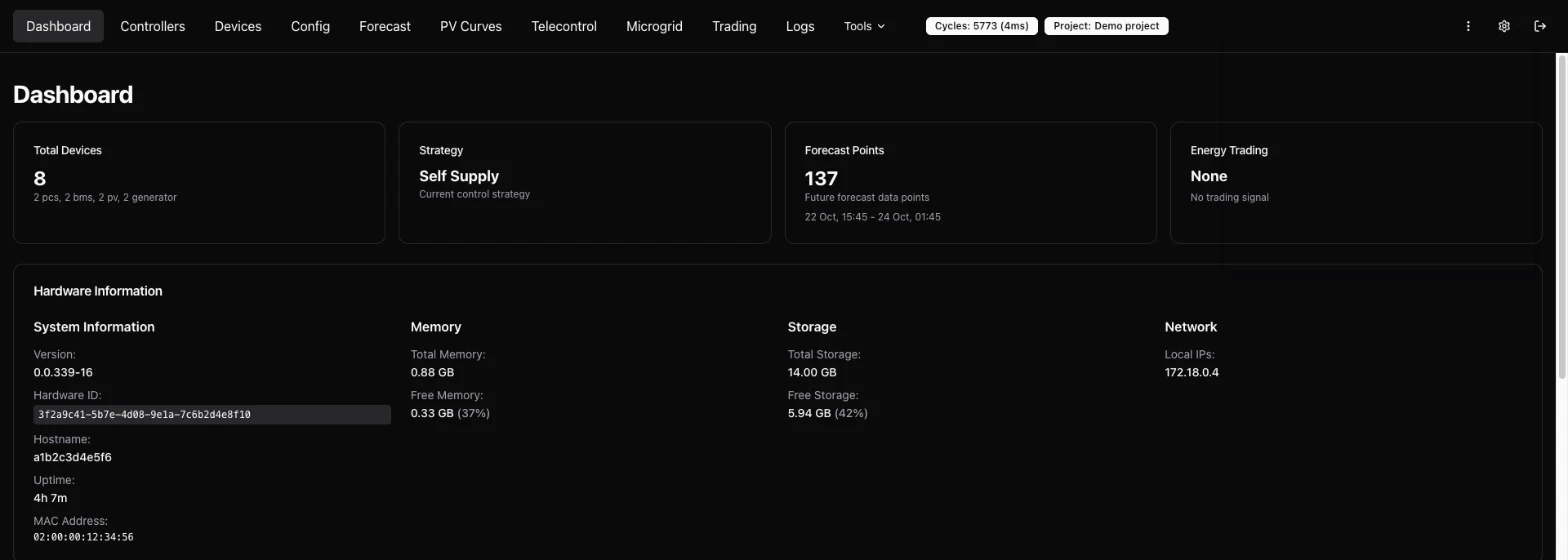
Changing the network on site
Under Tools → Network Config you set the IPv4 settings of the controller's interfaces (Ethernet and the USB network ports): DHCP or a static address, the gateway and the DNS servers. The page first shows what the controller uses right now.
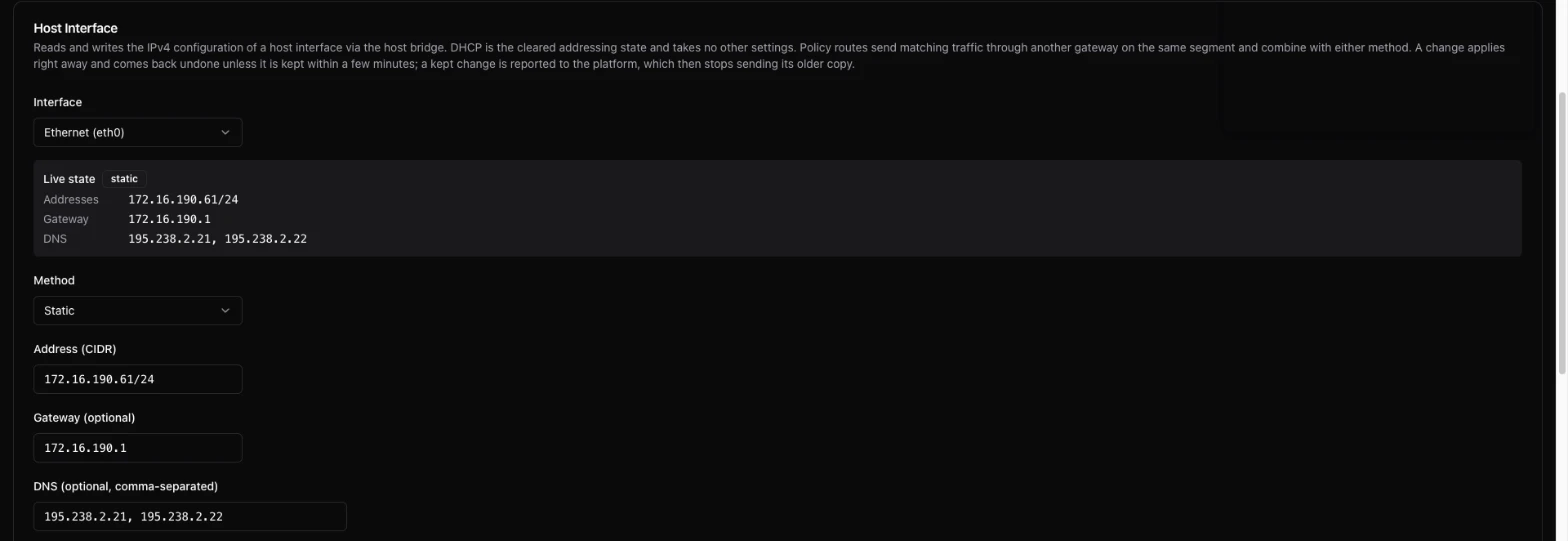
Apply the new settings
The controller applies the change right away.
Confirm within 3 minutes
Click Keep these settings within 3 minutes. Without a confirmation the controller goes back to its previous settings by itself, so a mistake never locks you out. Undo now goes back at once.
Changed address? Confirm on the new one
When the controller's address changed, open the local interface on the new address, log in again and confirm there.
Once confirmed, the controller passes the change on to the platform, which takes it over in the network configuration. On a site with a Fluvius RTU on a USB port, the platform keeps its own settings for the USB ports, so the RTU link keeps working.
This is the controller's own network, not that of the connected devices. A gateway and DNS servers are needed on the interface that carries the internet connection, otherwise the controller cannot reach the platform.
Security
- Everything on the local interface is behind the login. Someone on the site network without the login sees nothing.
- The login only works on this controller. Keep it to yourself and do not leave it on site.
- The connection between the controller and the platform (its certificates and keys) is not visible with this login.