Voltmasters Platform
Network configuration
Set the IPv4 settings of the EMS controller's own interfaces from the platform. A wrong setting can make the controller unreachable, so read how applying is checked first.
Under Configuration → EMS controller → Network configuration you set the IPv4 settings of the controller's network interfaces from the platform. You do not need a keyboard, a screen or a remote session at the site. The same tab holds the network check.
This is the controller's own network, not that of the connected devices. A wrong configuration can make the controller unreachable. Read Saving and applying before you save.
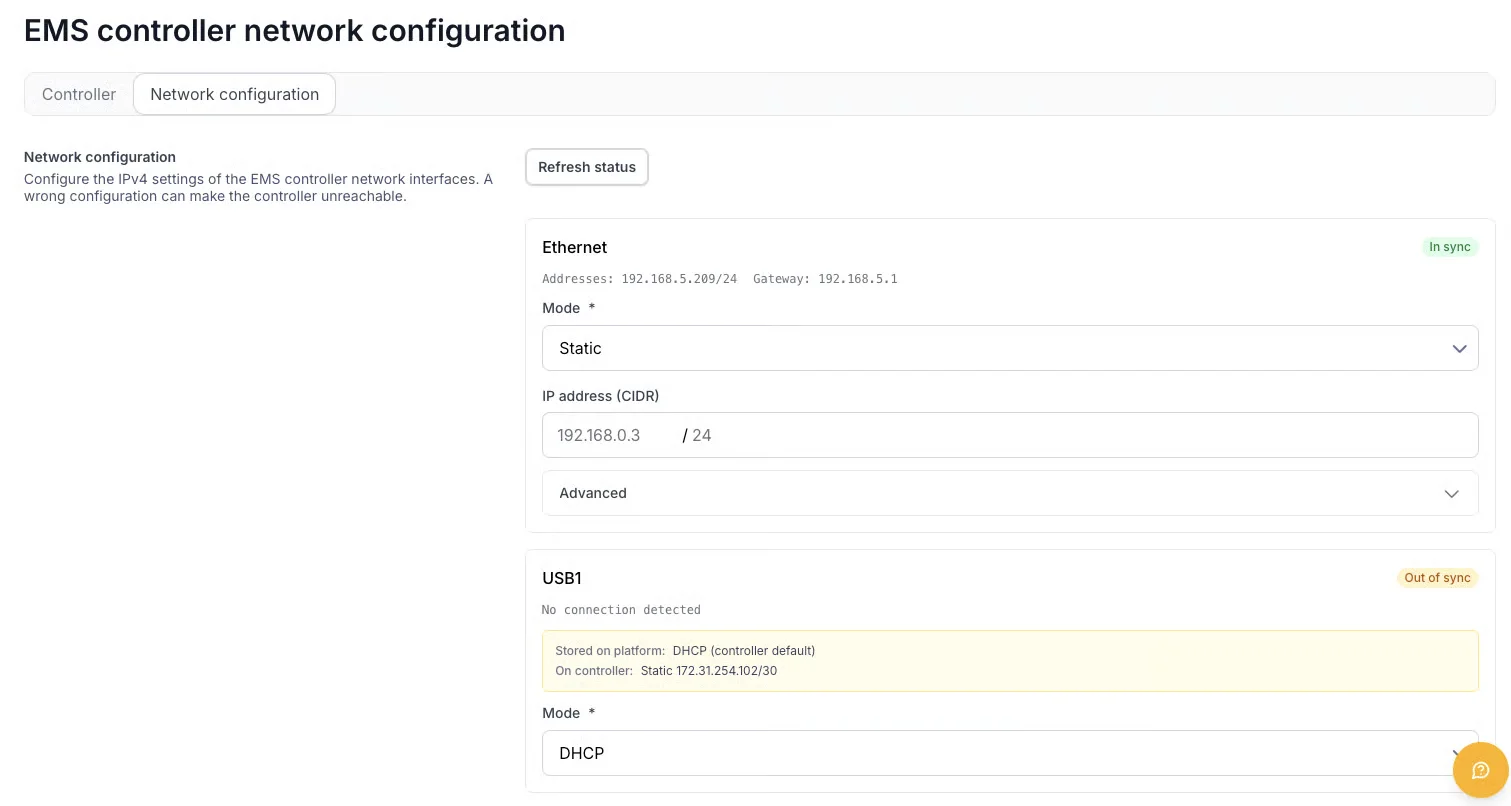
Ethernet on a static address, in sync with the controller. USB1 is out of sync: the controller runs a static address that the platform did not store.
The interfaces
The controller has three interfaces, each in its own card. They are independent: you can keep Ethernet on DHCP and give USB1 a static address, or the other way round.
| Interface | What it is |
|---|---|
| Ethernet | The wired network port: the normal connection to the local network and the internet. |
| USB1 | The first USB network port, for a device connected directly to the controller. |
| USB2 | The second USB network port. |
Mode, address and gateway
Mode is either DHCP or Static.
- DHCP: the interface gets its address, gateway and DNS servers from the router. There is nothing to fill in.
- Static: you enter an IP address (CIDR), the address with its prefix length, for example
192.168.0.3/24. Under Advanced you add a gateway and the DNS servers, separated by commas.
An interface that carries the internet connection needs a gateway and DNS servers when it is static. Without them the controller cannot reach the platform. An interface that only serves a directly connected device, such as the RTU on a USB port, needs neither.
On a Fluvius connection with Fall-Back Flex, the Netflex RTU is connected to a USB port and expects the controller on a fixed address. Do not edit these rows by hand; see Fall-Back Flex.
Policy routes
Under the advanced settings of each interface there is a Policy routes table, also in DHCP mode. It sends traffic to a given destination through another gateway, for example remote access through an LTE router when the site firewall blocks it.
Status and the sync badge
The card of each interface shows what the controller itself reports: the addresses and the gateway actually in use, or No connection detected when the link is down. With DHCP that is the address the router handed out.
The badge on the right compares the configuration stored on the platform with what the controller reports:
| Badge | Meaning |
|---|---|
| In sync | The controller runs exactly what the platform has stored. |
| Out of sync | The controller runs something different. Both are shown side by side: Stored on platform and On controller. |
An interface can be out of sync because someone changed it on the controller itself, or because a change was saved but has not come through yet. At the next activation of the configuration, the stored version is applied again.
Saving and applying
Save network configuration first shows a confirmation with the changes per interface. The button stays off as long as nothing has changed. After confirmation the configuration is stored and the controller applies it at the next activation, so the change is not immediate.
The controller does not apply a new configuration blindly: it checks whether it can still reach the platform. If not, it restores the previous configuration and reports an incident. A rolled-back configuration stays on the platform; correct it there and save again.
Changing the network on site
When the controller can no longer reach the platform, for example after a change of the site network, you set its network on site in the local interface of the controller. That change is taken over here once the controller reaches the platform again.
Who sees this
Only project administrators (users with the Installer role on the project, see Users), partner users (the installation partner of the project) and Voltmasters administrators can change and save the network configuration. Users with the Customer role cannot save changes.
For what the installer sees on this tab, see the network check.
Older controllers show a message with a link to the controller settings instead of the form.
For the ports and domains the controller must reach, see Internet and network.