Voltmasters Platform
Project dashboard (EMS)
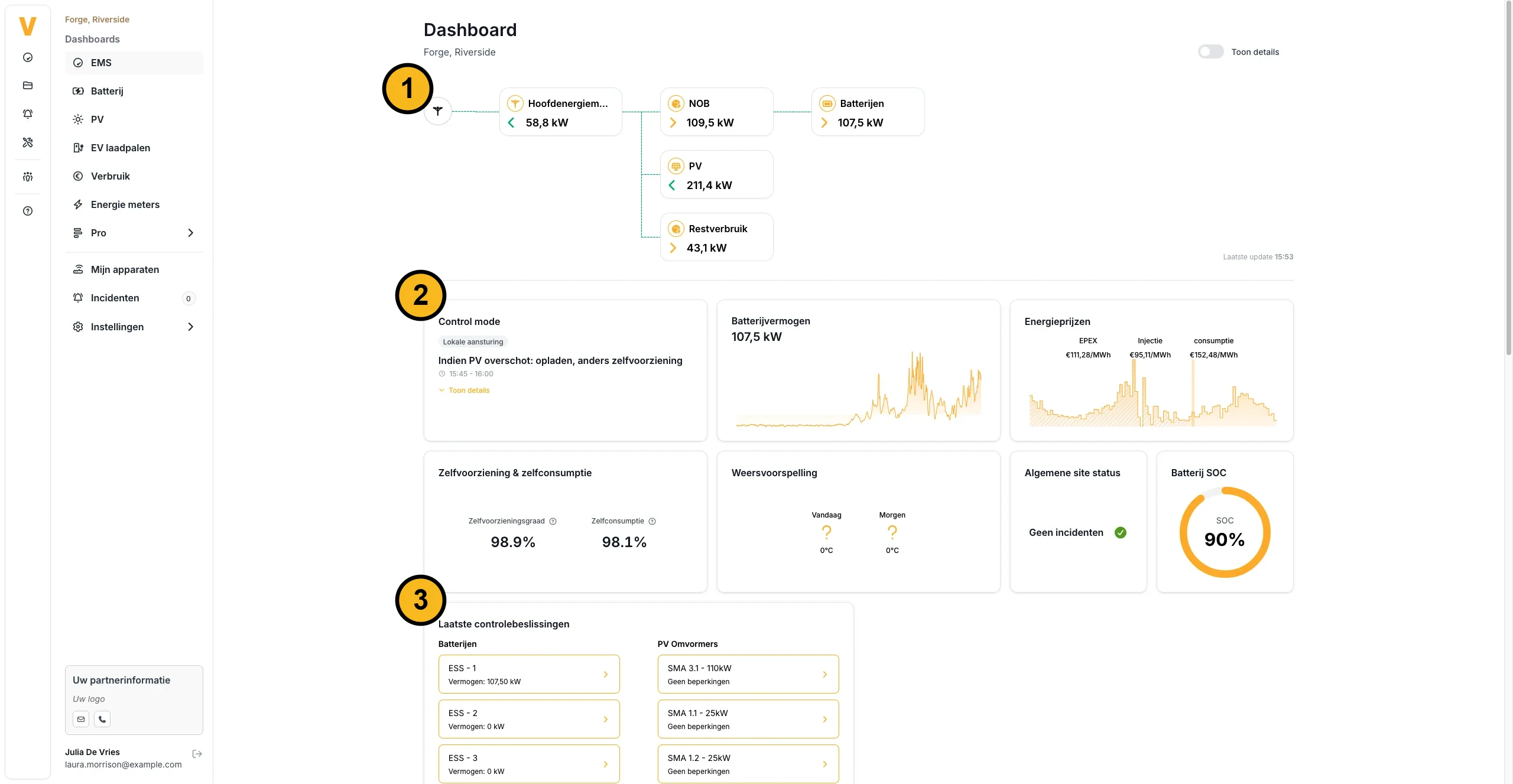
The EMS dashboard of a Voltmasters project: live power flows, how the batteries and PV are being controlled, and the key figures for the site.
When you open a project, the default page is the EMS dashboard. It gives a real-time, at-a-glance view of the whole installation: how power is flowing right now, how the batteries and PV are being controlled, and the key performance figures for the site.
On a project that is still being commissioned, a status bar at the top of the dashboard shows where the project stands in its validation by the Voltmasters project engineers.
Energy flow diagram
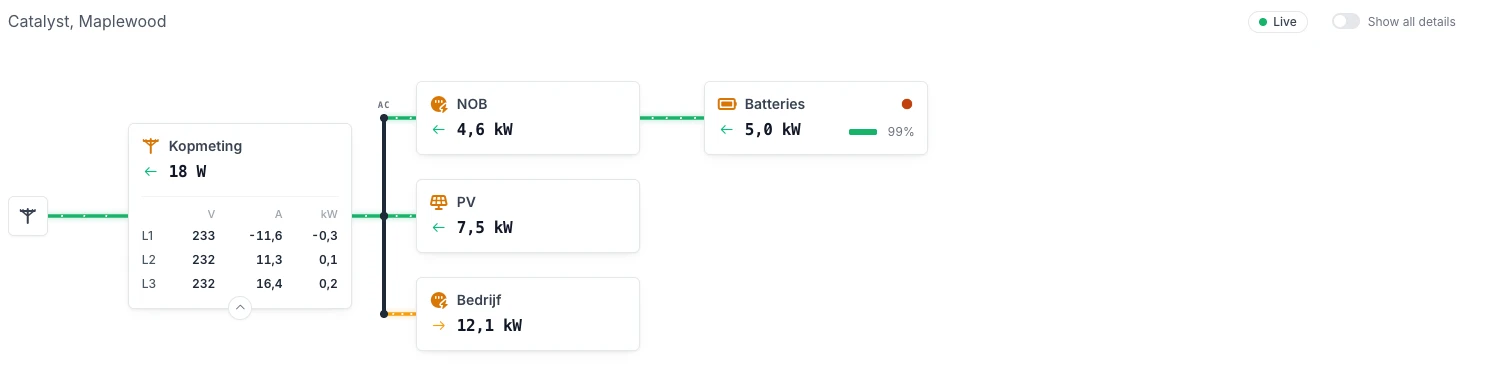
At the top, a live diagram shows how power moves through the installation, with the current power (in kW) on each link. It is updated continuously, so you can see at a glance whether the site is importing or injecting, and whether the batteries are charging or discharging. Typical nodes are:
- Main energy meter: power exchanged with the grid (import / injection) at the connection point.
- PV: current solar production.
- Wind turbine: current wind production, when the site has a wind turbine.
- Batteries: aggregate battery power (charging or discharging).
- Residual consumption: the remaining site consumption not covered locally.
- Controllable loads: every controllable load as a block of its own, under its device name. A load only consumes while it is switched on. Nothing measures its power, so the diagram estimates it from the nominal power of the load and marks the value Estimated from on/off.
- Consumption: on a site without grid connection, a Consumption block under the AC bus shows the load that the controller calculates.
Devices of the same kind are sorted in number order, so PV 2 comes before PV 10. When the site has an aggregate meter, the meters it adds up get no card of their own: they appear as rows inside the aggregate block, each with the live power it reports.
On a microgrid site, the diagram also shows the breakers and the state of the microgrid. See Live monitoring.
Block details
The header of the diagram shows a Live pill while the diagram receives live data from the controller. Every block has a details chevron on its bottom edge. It appears when you point at the block or move the keyboard focus to it, and it is always visible on a touch screen. Click it to show the details of that block, and click it again to hide them. To open the details of every block at once, turn on the Show all details switch next to the Live pill.
For an energy meter, the details hold a phase table with the voltage, current and power per phase. The units stand once in the header row, and a dash (-) marks a reading the meter did not send.
Key metric cards
A row of cards summarises the live state of the site:
- Control mode: the active control strategy (for example local optimization / self-supply, or cost optimization) with a short description of what it does. See Control algorithms for the underlying logic.
- Battery power: the current aggregate battery power, with a recent history chart.
- Energy prices: the EPEX price and the injection and consumption prices (€/MWh) over time. These drive cost-optimized control.
- Self-supply & self-consumption: two percentages, namely how much of your consumption is covered by your own generation (self-sufficiency), and how much of your generation you use yourself instead of injecting (self-consumption).
- Weather forecast: today's and tomorrow's outlook, to anticipate solar generation. When the site has a wind turbine, the card also shows the expected wind speed.
- General site status: whether there are open incidents on the site (green = none). See Incident Management.
- Battery SOC: a gauge with the aggregate state of charge of the batteries (%).
Battery plan
On projects that run the cost optimization strategy, the dashboard shows the battery plan: what the EMS intends to do with the battery in each quarter-hour of the selected day. The plan is drawn as a coloured band directly above the Prices and grid power chart, so you can read the plan against the prices that produced it.
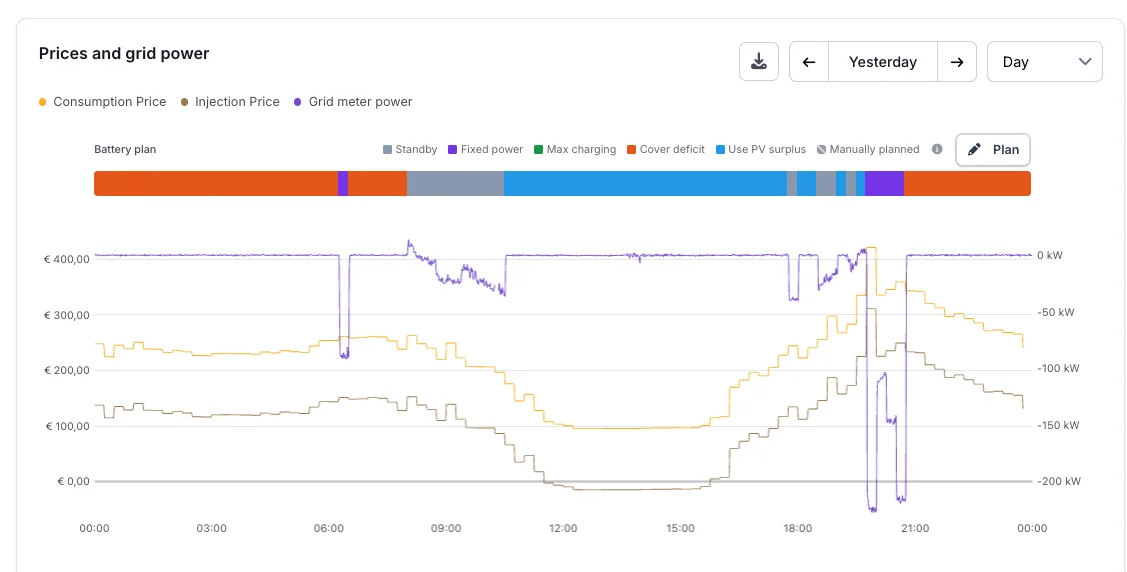
The battery plan, per quarter-hour, above the price and grid-power chart.
- Each block is one quarter-hour, coloured by the strategy planned for it: Standby, Fixed power, Max charging, Cover deficit, Store surplus, Self-consumption, Charge only and Discharge only. Quarters you have set yourself are marked Manually planned.
- Cover deficit and Store surplus are strategies of the planner itself. Cover deficit covers the consumption that local production does not cover. Store surplus stores the solar surplus for a later, more expensive moment: if production falls short, the battery covers consumption only up to the forecasted level, so the stored energy stays available for the moment it was meant for.
- The part of the day that has already passed is shown as a solid, read-only band: it records what was executed. Only quarter-hours in the future can still be changed.
- Hover a block to see its period, the planned strategy and the reason the planner chose it.
- Use the date navigation and the day/week/month selector of the chart to move to another day.
Planning as a list
Click Show planning as list above the lane to read the plan as a list. Every period of the day is a row with its time bar, the action of the battery (for example Cover production deficit, Battery standby or Store solar surplus) and its source: Automatic for the plan of the algorithm, Manual for a period you planned yourself. Consecutive quarter-hours with the same action form one period. A manual period that has not started yet, or still has quarter-hours to come, has an Edit pencil that opens the Plan strategy dialog for that period. Click Hide list to close the list.
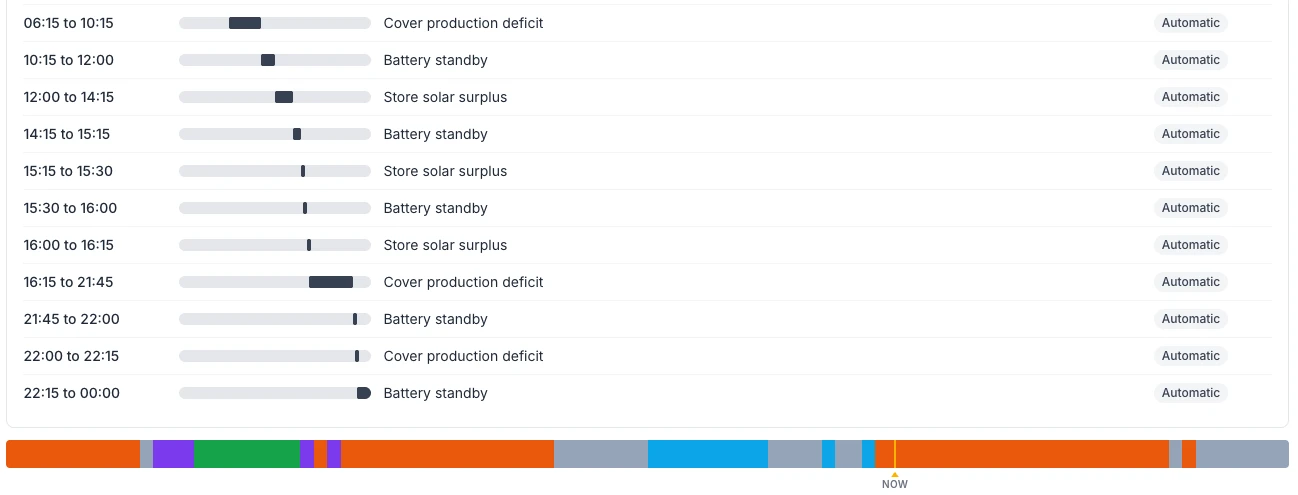
See Battery schedule for the logic behind the plan: how the EMS weighs prices, PV and consumption forecasts against the battery and grid limits.
Overriding a quarter-hour
You can override the planned behaviour of one or more quarter-hours yourself. Click Plan above the band to open the Plan strategy dialog.
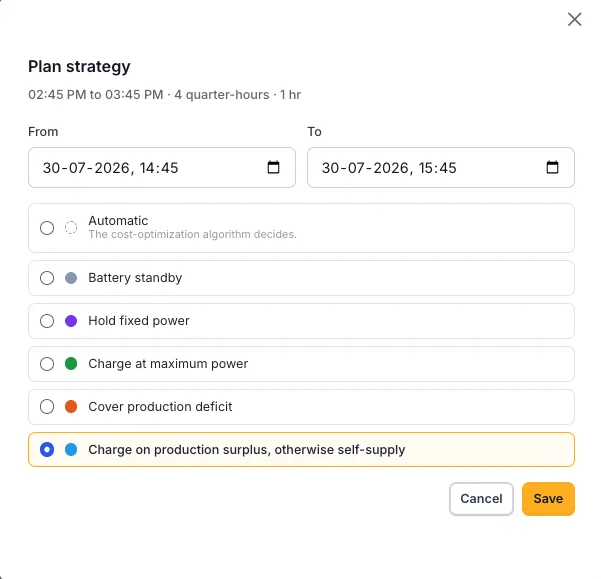
Setting the strategy for a range of quarter-hours.
Set the From and To moment. The dialog shows how many quarter-hours the range covers and how long it lasts. Then choose the strategy that must apply during that range:
| Strategy | What the battery does |
|---|---|
| Automatic | The cost-optimization algorithm decides, as it normally would. |
| Battery standby | The battery rests: solar production and the grid cover the consumption. A solar surplus is still stored, and the battery only discharges to keep the grid connection within its import limit. |
| Hold fixed power | The battery charges or discharges at the power you enter, regardless of consumption or solar production. Choose the Direction (Charge or Discharge) and enter the Power. The grid connection and the battery limits still cap that power. |
| Charge at maximum power | The battery charges as fast as the grid connection, the current consumption and the battery limits allow, and does not discharge during the period. |
| Cover production deficit | The battery discharges exactly the shortfall between consumption and local production, so as little as possible is drawn from the grid. If there is a solar surplus after all, the battery stores it. Only offered on a controller older than 0.0.339. |
| Store solar surplus | The battery stores the solar surplus that would otherwise be exported to the grid, and never charges from the grid. If production falls short, the battery covers consumption only up to the forecasted level. Only offered on a controller older than 0.0.339. |
| Self-consumption | The battery keeps the grid connection balanced: it charges the solar surplus and fully covers the consumption that local production does not cover. |
| Self-consumption: Charge only | The battery only charges the solar surplus. It does not discharge to cover consumption, except to keep the grid connection within its import limit. |
| Self-consumption: Discharge only | The battery only covers the consumption that local production does not cover. It does not charge, so a solar surplus is exported to the grid. |
Charge only and Discharge only appear under Self-consumption once you select it. These three options require EMS controller software version 0.0.339 or newer. On an older controller the dialog offers Cover production deficit and Store solar surplus instead, the strategies the planner uses itself.
Click Save. The affected quarter-hours turn into Manually planned blocks.
Every option has an info icon. It describes exactly what the controller does during such a block, so you can check the behaviour before you save it.
To hand a quarter-hour back to the planner, set it to Automatic again. Overrides apply only to the selected range; the EMS keeps optimizing every other quarter-hour.
A manual strategy overrules the economic plan for that period. Take your import and export limits into account, especially with Hold fixed power and Charge at maximum power.
Installation data chart
Below the Prices and grid power chart, the Installation data chart shows the battery power, the production (PV, and wind or generator where the site has them) and the consumption over the selected period, with the predictions for PV production and consumption.
The Battery SoC series shows the measured state of charge of the batteries as a solid line. When the period reaches into the future, the dotted Battery SoC prediction continues it with the state of charge the controller expects from its battery plan. The prediction starts from the current state of charge and is refreshed every 5 minutes, so it follows changes in prices, forecasts and your own planning. Use it to check whether the plan keeps the battery within its limits and whether enough energy is kept for the periods that need it.
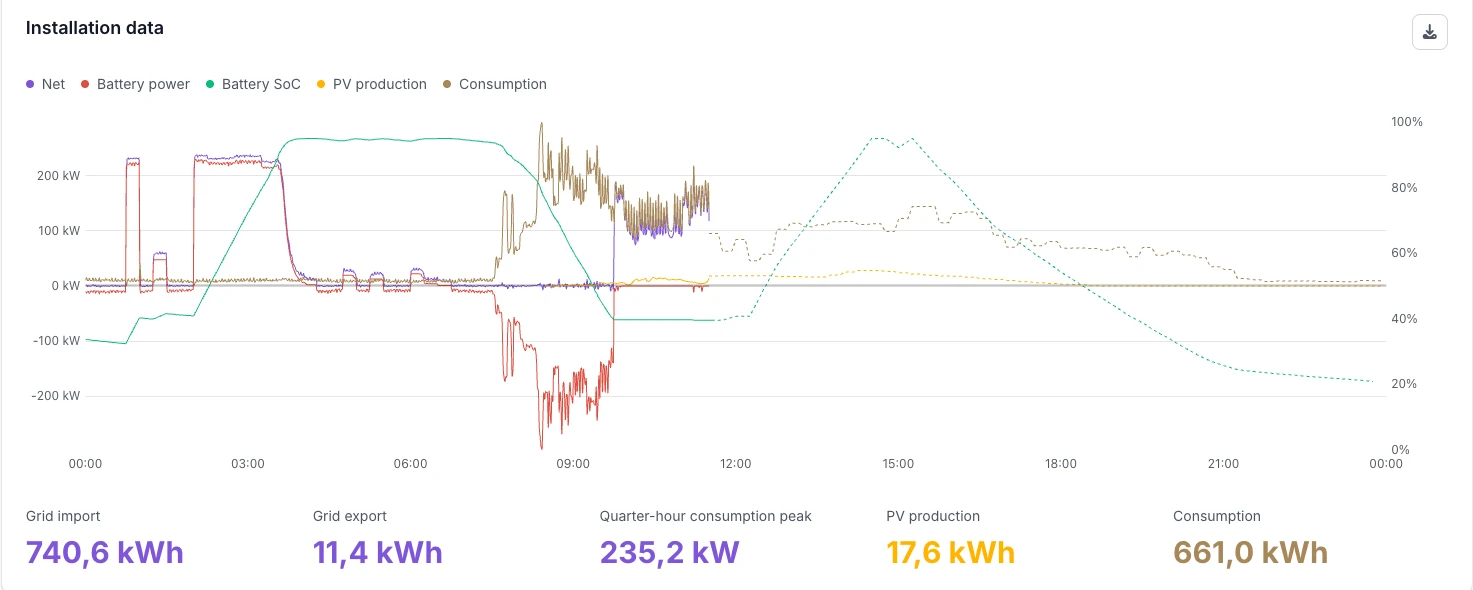
The Battery SoC prediction is produced by the EMS controller and requires controller version 0.0.314 or higher. On older controllers the chart shows only the measured state of charge.
Latest control decisions
At the bottom, the dashboard lists the most recent decisions the EMS made, grouped per asset, so you can verify the controller is doing what you expect and troubleshoot when it is not:
- Batteries: per battery / ESS, the commanded power and its status.
- PV inverters: per inverter, the applied setpoint or limit and its status (for example no limitations or target reached).
- EV chargers: per charger, the decision and its reason for each connector.
- Controllable load: per load, whether the EMS switches it On or Off.
- Generators: per generator, what the EMS asks it to do, for example Start, setpoint with the requested power, Start, forms the island on a microgrid, Stop, or No action with the current state (Running or Stopped).
Expand a row to see the detail and the reason behind that decision.
The EMS dashboard is the project-wide overview. For a deeper look at a single energy stream, use the dedicated dashboards: Battery (ESS), PV, Consumption and Energy Meter.